Connect ChatGPT
Install the StrategyTune plugin from ChatGPT's plugin directory — and what each permission level means.
ChatGPT calls connectors plugins, and StrategyTune is published in ChatGPT's plugin directory — so connecting takes a couple of clicks, with no setup on your side. Install it once and it works in ChatGPT on web, desktop, and mobile on your account.
Step 1 — Install the plugin
Open the StrategyTune plugin in ChatGPT and install it. ChatGPT then offers to connect it to your StrategyTune account — click Sign in with StrategyTune.
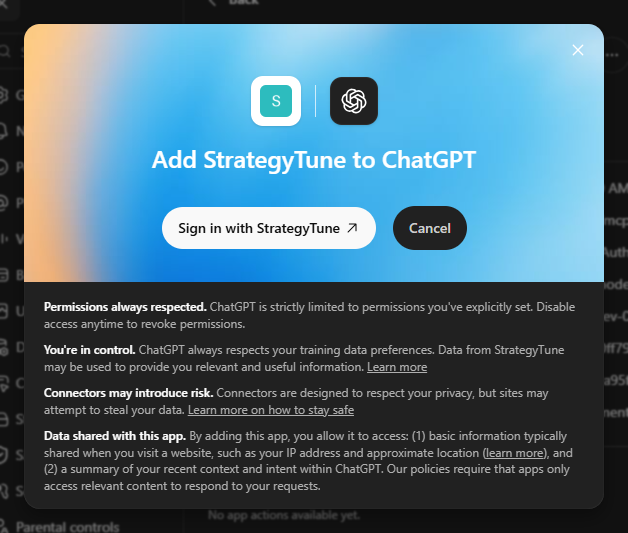
Step 2 — Sign in and approve access
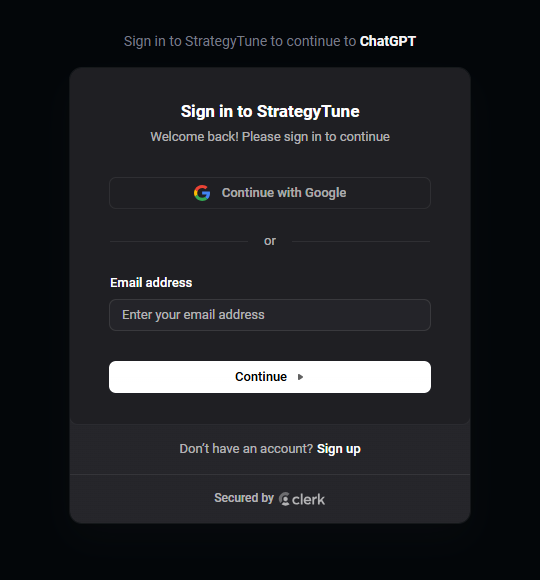
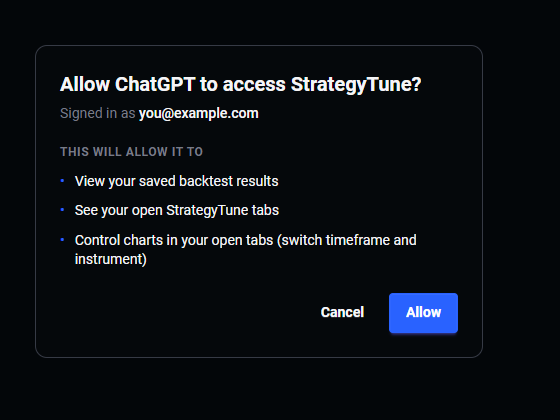
A StrategyTune window opens: sign in to your StrategyTune account (or you're taken straight to approval if you're already signed in), review the access summary, and click Allow.
You don't need a StrategyTune subscription for this — the connection is free on every plan, and the AI usage runs on your existing ChatGPT subscription.
Step 3 — Check the connection
The plugin's manage page (Settings → Plugins → StrategyTune, or the plugin card's ⋯ → Manage) shows the connection and, under Actions, every StrategyTune tool ChatGPT can use. If the Actions list is empty right after connecting, click Refresh in the Information section.
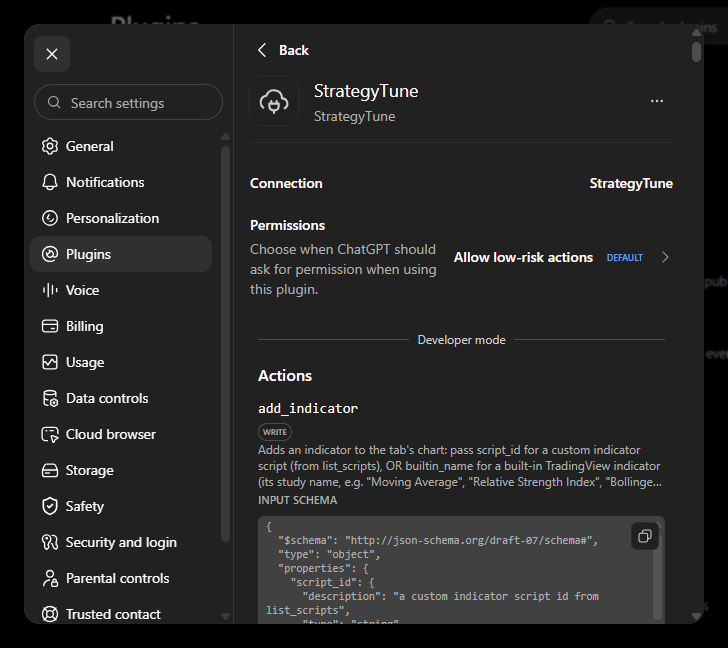
Permissions — what "allow" levels mean
The Permissions setting controls when ChatGPT asks you before using StrategyTune tools. There's a global default for all plugins (Settings → Plugins → Permissions) and a per-plugin override on the plugin's manage page. Four levels:
- Always ask — ChatGPT asks before reading or changing anything.
- Allow read actions — reads happen without asking; anything that makes changes still needs your confirmation.
- Allow low-risk actions (default) — ChatGPT auto-approves actions it judges low-risk and asks for sensitive ones.
- Allow all actions (marked elevated risk) — ChatGPT never asks before using tools. Most convenient, but script saves, deletions, and chart changes happen without a confirmation prompt.
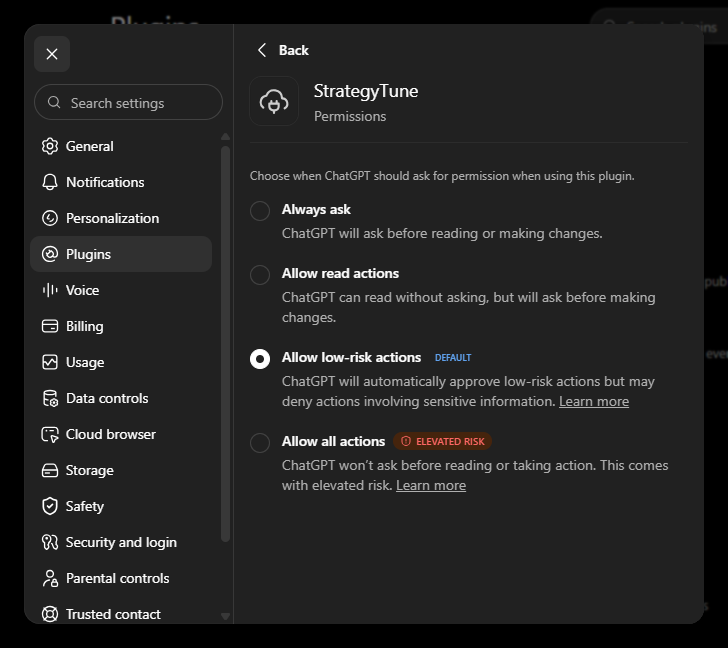
The default works well: backtests and chart reads flow without interruptions, while riskier actions get a confirmation. Pick Allow all actions only if you're comfortable with ChatGPT changing your scripts and charts without asking each time.
Managing or removing the plugin
The plugin lives on ChatGPT's Plugins page; its card's ⋯ menu offers Chat, Manage, and Uninstall. You can also revoke ChatGPT's access from the StrategyTune side at any time in Settings → Connected AI — that cuts the connection even if the plugin stays installed.
For what your AI can do once connected, see What your AI can do. For other clients (Claude, Claude Code, Codex), see Connect your AI.
Something missing or wrong? Email support@strategytune.com.